项目集成
方式一:集成预览器(包集成)
此方式仅集成预览器功能,适用于不需要设计器,仅需在项目中进行展示的场景。
集成步骤
1. 设计与导出
在 在线编辑器 中进行组态设计。设计完成后,将数据导出为 JSON 格式。
2. 代码集成
请按照以下步骤完成预览器的集成。
2.1 资源准备
下载预览器组件包并将解压后的 scenev 文件夹放置在项目的 public 目录下。
TIP
提取码通过群公告或者联系作者获取
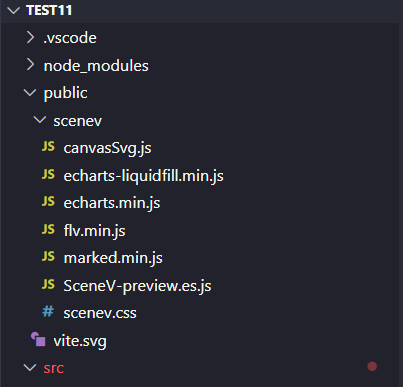
2.2 引入全局资源
在项目的入口文件 index.html 的 <head> 标签中引入必要的依赖文件:
html
<!doctype html>
<html lang="en">
  <head>
    <meta charset="UTF-8" />
    <link rel="icon" type="image/svg+xml" href="/vite.svg" />
    <meta name="viewport" content="width=device-width, initial-scale=1.0" />
    <title>SceneV Project</title>

    <!-- 引入的依赖文件 -->
    <script src="/scenev/canvasSvg.js"></script>
    <script defer src="/scenev/marked.min.js"></script>
    <!--必须引入echarts.min.js-->
    <script defer src="/scenev/echarts.min.js"></script>
    <script defer src="/scenev/echarts-liquidfill.min.js"></script>
    <script src="/scenev/flv.min.js"></script>
    <script src="/script/html2canvas.js"></script>
  </head>
  <body>
    <div id="app"></div>
    <script type="module" src="/src/main.ts"></script>
  </body>
</html>
2.3 组件调用
在 Vue 组件中引入 Preview 组件及样式,并传入 JSON 数据与授权码。
示例:通过 import 引入 JSON 文件
vue
<template>
  <div style="width: 100%; height: 100%;">
    <Preview :json="scenevJson" :licenseCode="licenseCode" />
  </div>
</template>

<script setup>
import { ref } from "vue";
import { Preview } from "/public/scenev/SceneV-preview.es.js";
import "/public/scenev/scenev.css";
import json from "../assets/scenev.json"; // 从JSON文件放置的位置引入

const scenevJson = JSON.stringify(json);
const licenseCode = ref(""); // 填入获取到的授权码
</script>
获取授权
仅集成预览器需要授权码 licenseCode 才能正常使用,提供以下授权模式:
方式二:集成设计器(包集成)
此方式通过集成打包后的设计器以及预览器文件,在项目中直接引入即可使用。
示例项目
示例项目仓库地址:scenev-2d-example
bash
git clone https://gitee.com/thexiong7/scenev-2d-example.gitbash
git clone git@gitee.com:thexiong7/scenev-2d-example.git示例项目提供以下分支:
vue3_designer:Vue3 设计器集成示例vue2_preview:Vue2 预览器集成示例
按分支克隆示例项目:
bash
git clone -b vue3_designer https://gitee.com/thexiong7/scenev-2d-example.gitbash
git clone -b vue2_preview https://gitee.com/thexiong7/scenev-2d-example.git集成步骤
1. 资源准备
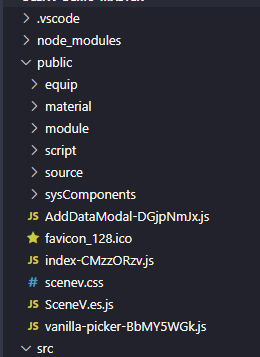
下载设计器依赖文件并将解压后的 scenev 文件放置在vite创建的项目的 public 目录下(如下图所示)。
TIP
提取码通过群公告或者联系作者获取
2. 引入全局资源
在项目的入口文件 index.html 的 <head> 标签中引入必要的依赖文件:
html
<!doctype html>
<html lang="en">
  <head>
    <meta charset="UTF-8" />
    <link rel="icon" type="image/svg+xml" href="/vite.svg" />
    <meta name="viewport" content="width=device-width, initial-scale=1.0" />
    <title>SceneV Project</title>

    <!-- 引入资源 -->
    <link href="/script/font.css" rel="stylesheet" />
    <script src="/script/iconfont_1.js"></script>
    <script src="/script/iconfont_2.js"></script>
  </head>
  <body>
    <div id="app"></div>
    <script type="module" src="/src/main.ts"></script>

    <script src="/script/canvasSvg.js"></script>
    <script defer src="/script/marked.min.js"></script>
    <script defer src="/script/echarts.min.js"></script>
    <script defer src="/script/echarts-liquidfill.min.js"></script>
    <script src="/script/flv.min.js"></script>
    <script src="/script/html2canvas.js"></script>
  </body>
</html>
3. 安装依赖
项目依赖 Element Plus、Arco Design Vue、VueUse 和 Monaco Editor,请根据您的包管理器执行安装命令:
bash
npm install element-plus@2.11.7 @element-plus/icons-vue @vueuse/core monaco-editor --savebash
yarn add element-plus@2.11.7 @element-plus/icons-vue @vueuse/core monaco-editorbash
pnpm install element-plus@2.11.7 @element-plus/icons-vue @vueuse/core monaco-editor4. 全局注册
在 main.ts 中全局引入 Element Plus:
typescript
import { createApp } from "vue";
import App from "./App.vue";

// 引入 Element Plus
import ElementPlus from "element-plus";
import "element-plus/dist/index.css";
import "element-plus/theme-chalk/dark/css-vars.css";
import "/public/scenev.css";

import { setupFormkit } from "../public/SceneV.es.js";


const app = createApp(App);

setupFormkit(app)
app.use(ElementPlus);
app.mount("#app");
5. 包引入
将设计器和预览器的包放入项目中,通过路径访问导出设计器、预览器
5.1 设计器配置
vue
<template>
  <div style="width: 100%; height: 100%;">
    <Editor
      :theme="theme"
      :json="json"
      :licenseCode="licenseCode"
      @saveJson="onSaveJson"
      @changeTheme="handleChangeTheme"
    />
  </div>
</template>

<script setup>
import { ref } from "vue";
import { Editor } from "/public/SceneV.es.js";
//或者使用相对路径访问文件路径
//import { Editor } from "../public/SceneV.es.js";

const theme = ref(""); // 填入获取到的授权码
const json = ref(); // 用于回显,初始值为空
const licenseCode = ref(""); // 填入获取到的授权码

const handleChangeTheme = (theme) => {};

const onSaveJson = (json) => {};
</script>
5.2 预览器配置
vue
<template>
  <div style="width: 100%; height: 100%;">
    <Preview :json="scenevJson" :licenseCode="licenseCode" @login="handleLogin"
      @refresh-token-info="handleRefreshTokenInfo" />
  </div>
</template>

<script setup>
import { ref, onMounted } from "vue";
import { Preview } from "/public/SceneV.es.js";

const scenevJson = ref("");
const licenseCode = ref(""); // 填入获取到的授权码
onMounted(() => {
  // 从 localStorage 中获取保存的 JSON 数据
  const savedJson = localStorage.getItem('scenev-json');
  if (savedJson) {
    scenevJson.value = JSON.parse(savedJson);
  }

  // 如果用到了thingsboard数据源,需要提前将token和刷新token设置到localstorage中
});


const handleLogin = () => {
  console.log("thingsboard数据源token过期");
  // 如果用到了thingsboard数据源,需要重新获取token,设置到localstorage中
};
const handleRefreshTokenInfo = (event) => {
  console.log("thingsboard数据源token刷新", event.detail);
  // 如果用到了thingsboard数据源,内部会自动尝试刷新token,如果成功会通知到这里
}
</script>
5.3 路由配置
typescript
import { createRouter, createWebHashHistory } from "vue-router";
import PreviewView from "@/views/PreviewView.vue";
import EditorView from '@/views/EditorView.vue'

const router = createRouter({
  history: createWebHashHistory(import.meta.env.BASE_URL),
  routes: [
     {
      path: '/',
      name: 'editor',
      component: EditorView
    },
    {
      path: "/preview",
      name: "preview",
      component: PreviewView,
    },
  ],
});
3. 获取授权
设计器预览器需要授权码 licenseCode 才能正常使用,提供以下授权模式:
方式三:源码购买
此方式为源码购买,您将获得包含设计器和预览器的完整项目源代码,支持深度定制和二次开发。
联系作者 咨询和购买源码。